Feedback
The Feedback functionality in Zooniverse allows project teams to provide volunteers with immediate guidance when they classify designated training subjects. This helps participants learn as they go and improves the quality of collected data. When a volunteer classifies a training subject, the system can show whether their answer was correct along with customizable success or failure messages. Feedback is configured per Workflow and can be used with certain tasks (including question, survey, and drawing tasks).
 |
|---|
| Figure 1. Example of a feedback popup, for the Planet Hunters TESS project. |
There are four aspects to configuring feedback for your workflow:
- Adding Workflow Feedback Rules
- Creating a Training Subject Set
- Setting Frequency of Training Subjects
- Adapting Subject Retirement
Adding Workflow Feedback Rules
Feedback can be configured on the Workflow page in the Project Builder. Follow these steps to set it up:
-
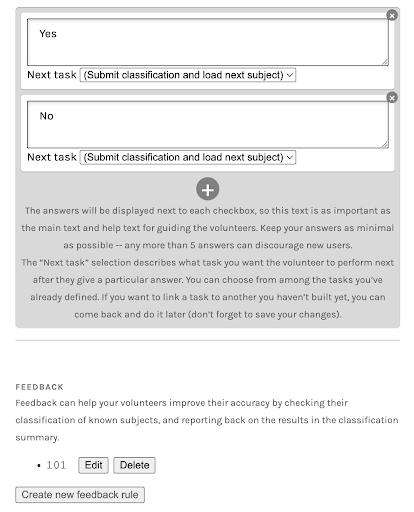
Open your workflow and navigate to the Feedback section under your question options. This section appears below the task area. For example, below answer options for a question task; see screenshot below.
-
Select Create new feedback rule to open the configuration panel.
-
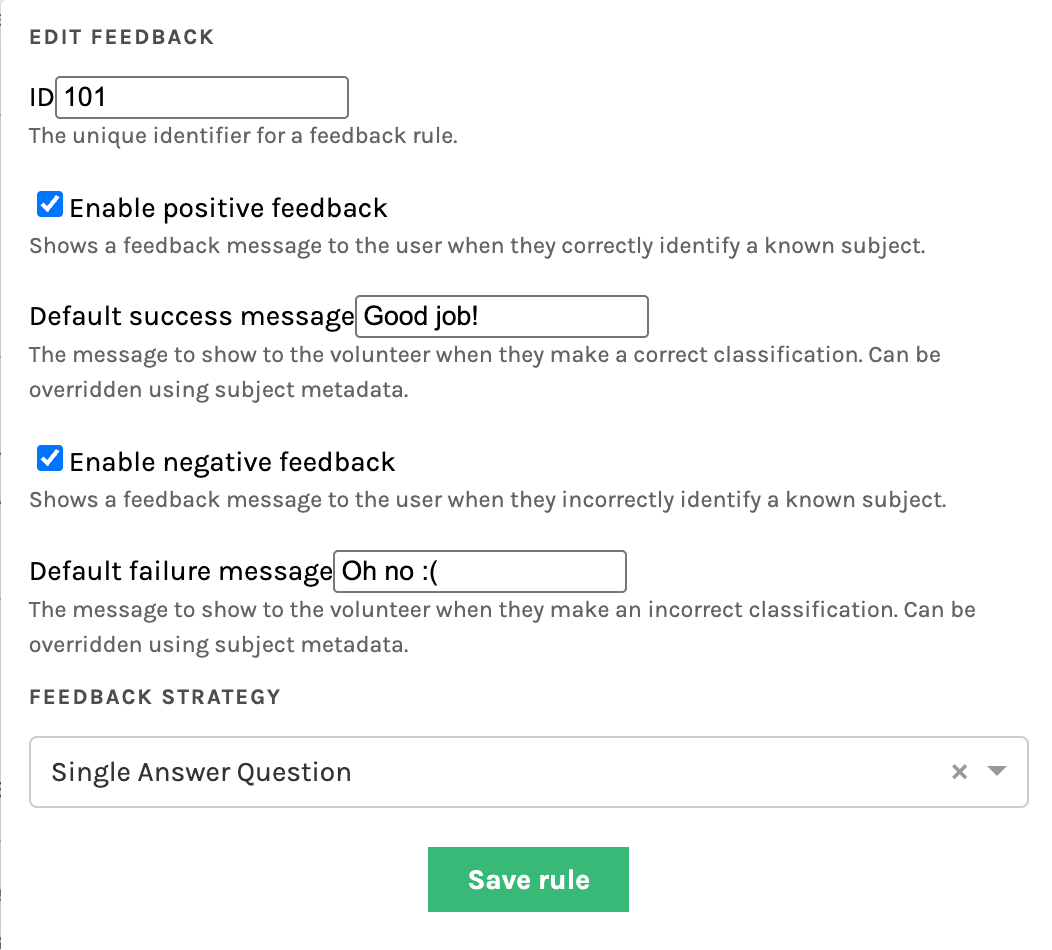
Enter a unique Feedback Rule ID — this can be any number, but you’ll need to reference it later when uploading your training subjects.
-
Enable positive and/or negative feedback, and enter default messages for each.
- These messages will be shown to volunteers when they correctly and/or incorrectly classify a known training subject.
- You can override these default responses by specifying subject-specific messages in subject metadata.
-
Choose a Feedback Strategy, such as Single Answer Question (recommended for yes/no tasks).
Once configured, click Save rule to apply your settings. You can edit or delete the rule later if needed.
 |
 |
|---|---|
| Figure 1. Example of a question task setup with feedback section visible below answer options. | Figure 2. Example of a feedback rule setup showing success and failure messages for positive and negative feedback. |
Creating a Training Subject Set
Feedback requires specifying a Training Subject Set, which contains examples for which the correct answers are already known. These are the subjects that will be used to provide feedback to volunteers during classification. When uploading or editing these subjects, you will need to include feedback-specific metadata entries in the subject manifest.
Feedback Strategies
The exact metadata keys required depends on the task type. Below, we show the metadata required for the common case of a single-answer question task, and provide links to external documentation for other task types.
Single Answer Question Strategy
For single-answer question tasks, this strategy will determine whether the user correctly answered a single question, or, alternatively, if no answer was provided. A single subject can have multiple feedback rules. To group the metadata fields for a single feedback rule together, N should be an integer that is identical for each rule, e.g.:
| Metadata Field | Description |
|---|---|
#training_subject |
Set to true to mark this subject as a training subject; used by Caesar for subject retirement rules. |
#feedback_N_id |
The feedback rule ID (matches the workflow configuration). |
#feedback_N_answer |
The correct answer index (e.g., "0" for "Yes", "1" for "No"). |
#feedback_N_successMessage |
(Optional) Custom message when the volunteer classifies correctly. |
#feedback_N_failureMessage |
(Optional) Custom message when the volunteer classifies incorrectly. |
Metadata Example:
metadata = {
    '#training_subject': 'true',
    '#feedback_1_id': '101',
    '#feedback_1_answer': '0',  # Index of correct answer (string)
    '#feedback_1_successMessage': "Correct!",
    '#feedback_1_failureMessage': "Oops! Try again."
}
Note: Feedback answer indices must be strings when configured using the Python Client or API directly (e.g., '0' not 0). The CLI will upload manifest contents correctly as strings by default.
While it is easiest to include feedback subject metadata fields in manifest files during initial subject creation and upload, it is also possible to add these metadata keys after subject creation using the Python Client to edit metadata. See this script in the Data-digging repository for implementation examples of client commands.
All Task Types
Above is the metadata required for single-answer question tasks. You can also find this documented in the FEM GitHub.
All strategies share a common set of keys: #feedback_N_id, #feedback_N_successMessage (optional), #feedback_N_failureMessage (optional), #training_subject (optional, used by Caesar)
Other task types / strategies use other keywords; please refer to the linked documentation resources for complete details:
- Single Answer Question:
#feedback_N_answer - Simple Survey:
#feedback_N_choiceIds - Radial Drawing:
#feedback_N_x,#feedback_N_y,#feedback_N_tolerance(optional) - Graph2dRange Drawing:
#feedback_N_x,#feedback_N_width,#feedback_N_tolerance(optional) - Empty Annotation ("dud"): No addition keys
Setting Frequency of Training Subjects
Subject sets can be identified as training sets, allowing them to be served differently from the rest of the linked sets and removing them from workflow retirement statistics. Specifically, training sets can be served to workflow participants with decreasing frequency over time, providing greater guidance early on and tapering off later when volunteers have become more confident and consistent.
Training behavior is controlled via three workflow configuration variables:
training_set_ids– identifies which subject sets contain training subjectstraining_chances– an array of probability values used to determine frequency at which training subjects are shown. A value is selected from this array using the index derived from a user's seen subjects count for the workflowtraining_default_chance– the fallback probability used when no array-based values are available or when the user has exceeded the array length
Workflow parameters can be configured via the Panoptes Python client by project owners and collaborators. See this script in the Data-digging repository for implementation examples of client commands.
Adapting Subject Retirement
In cases where training subjects are meant to be shown at higher frequency than typical subjects, it is desired that training subjects not be retired. Therefore, subject retirement conditions need to treat training subjects differently than other subjects. To accomplish this, you can use Caesar for subject retirement. Specifically, Caesar reducers can filter according to "training behavior" to differentiate between training subjects and normal "experiment" subjects: when using the experiment_only setting, training subjects (identified via #training_subject subject metadata key) will be ignored.